
 English
 Español
 Français
 Deutsch
 Português
 日本語
日本語
 中文
中文
 العربية
 한국어
한국어
 Italiano
 Русский
 Türkçe
 Nederlands
 Polski
 हिन्दी
 Dansk
Dansk
 Čeština
 Română
 Ελληνικά
 Tiếng Việt
 Suomi
Suomi
 Українська
 Indonesia
 Svenska
 Norsk bokmål
 Hrvatski
 Magyar
 Български
 中文(繁體)
 Slovenčina
 Srpski
 ไทย
ไทย
 Eesti
Eesti
 Català
 Lietuvių
 עברית
עברית
 Slovenščina
 فارسی
فارسی
 Latviešu
 Azərbaycan
 Беларуская
 Melayu
 Bosanski
 ქართული
 Shqip
Shqip
 Gaeilge
 Монгол
 ဗမာ
ဗမာ
 O‘zbek
 اُردو
اُردو
 Македонски
 ខ្មែរ
ខ្មែរ
 Nynorsk
 বাংলা
বাংলা
 Galego
 Euskara
 Íslenska
 தமிழ்
தமிழ்
 ລາວ
ລາວ
 ગુજરાતી
 Latina
 मराठी
मराठी
 Қазақ тілі
 ਪੰਜਾਬੀ
 Afrikaans
 नेपाली
 አማርኛ
አማርኛ
 తెలుగు
 ChiShona
 Cymraeg
 Føroyskt
 অসমীয়া
 Brezhoneg
 Esperanto
 Basa Jawa
 کٲشُر
کٲشُر
 Ирон
Ирон
 Sardu
Sardu
 සිංහල
සිංහල
 Татар
Татар
 ትግርኛ
ትግርኛ
 Türkmen dili
 Malti
Malti
 ಕನ್ನಡ
ಕನ್ನಡ
 Lëtzebuergesch
 Te reo Māori
 Davvisámegiella
 ꆈꌠꁱꂷ
ꆈꌠꁱꂷ
Let your AI agent do the mapping
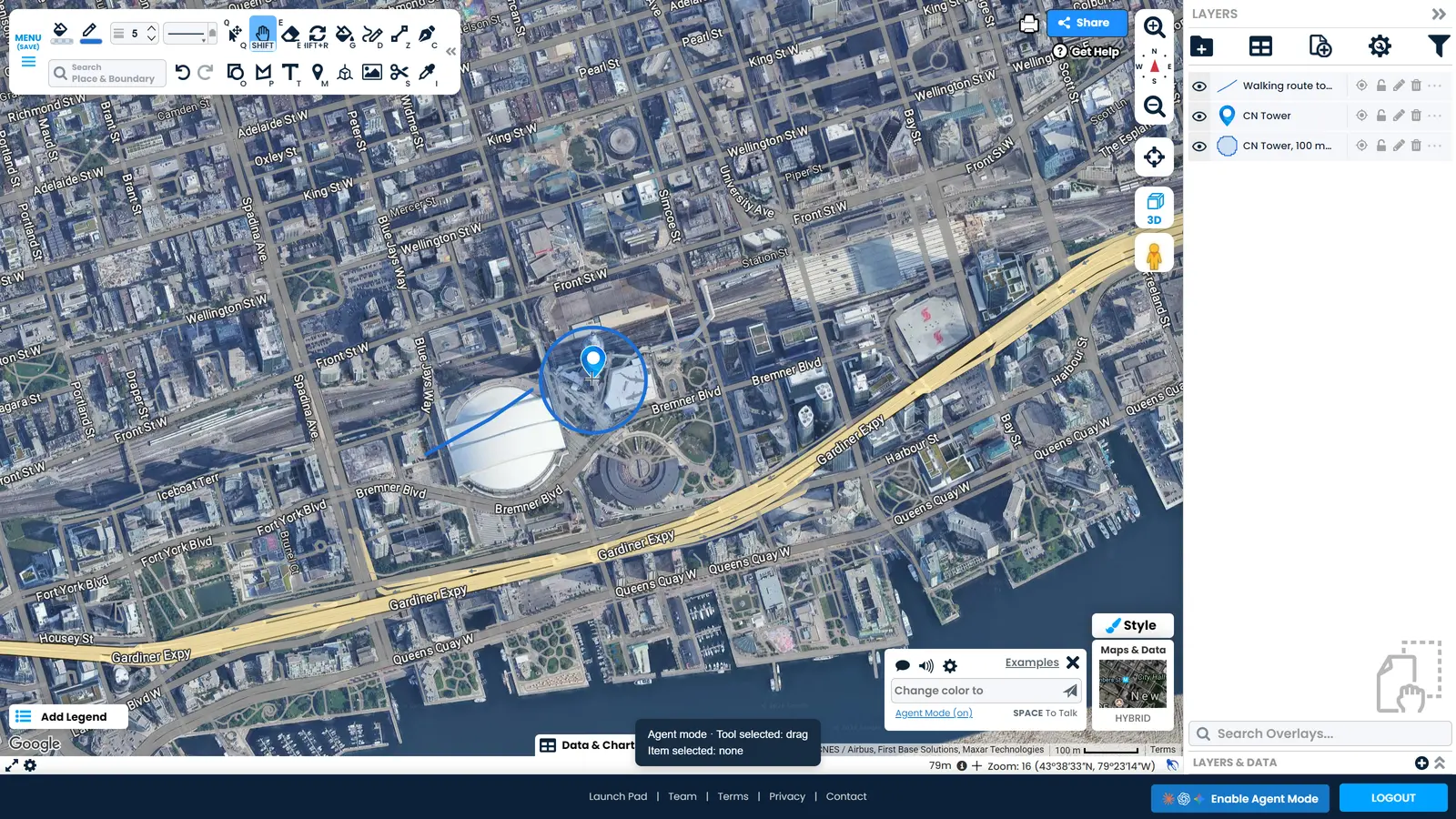
Ask Claude, ChatGPT or Gemini to draw a shape, fix a boundary or tidy up a map. It works in the ScribbleMaps editor you already have open, on your own maps.
Built into the map editor. Nothing to install, and no setup.
What Your Agent Can Do
Every tool you use
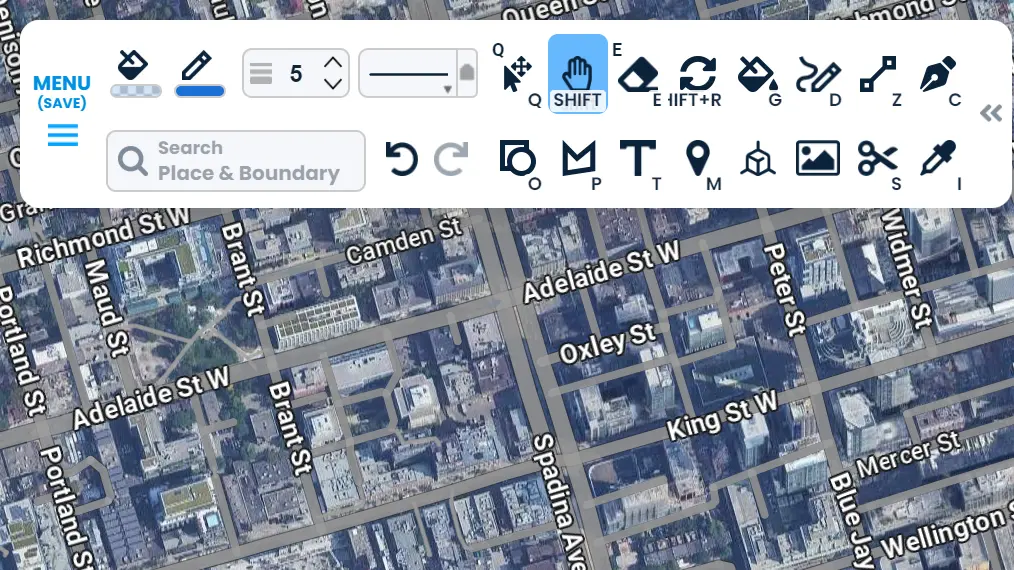
Your agent can reach the same tools you do, from drawing and styling to imports, filters, travel times and exports. Ask for the result and it picks the tool.
Draw what you ask for
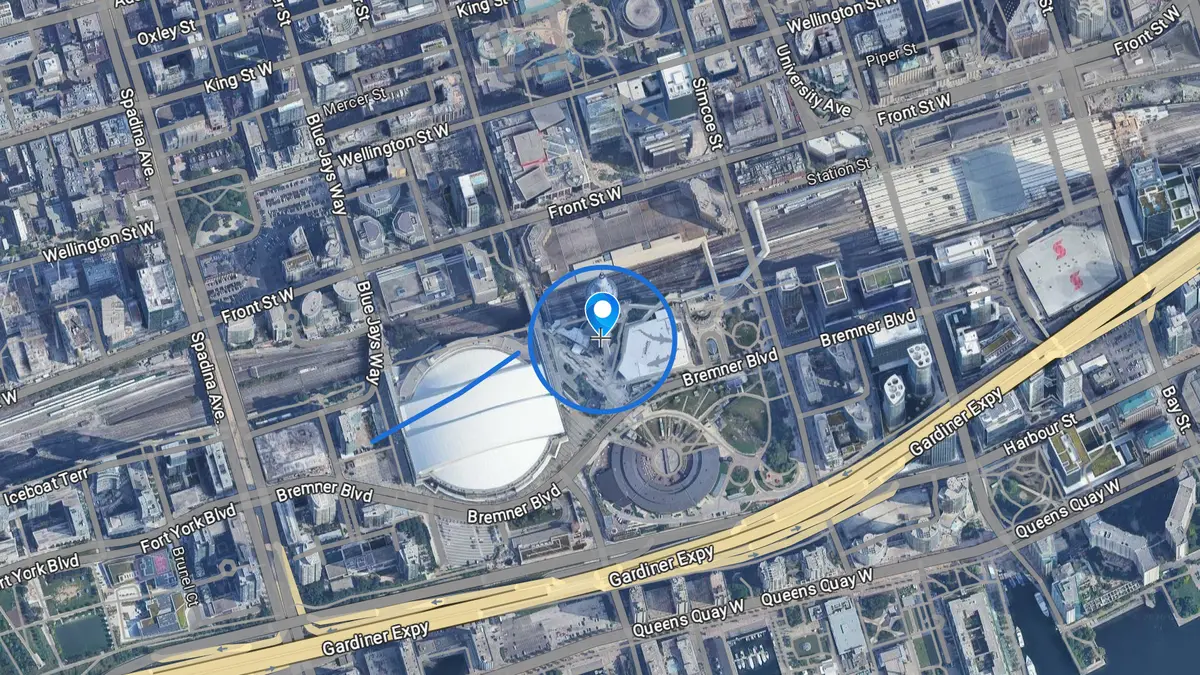
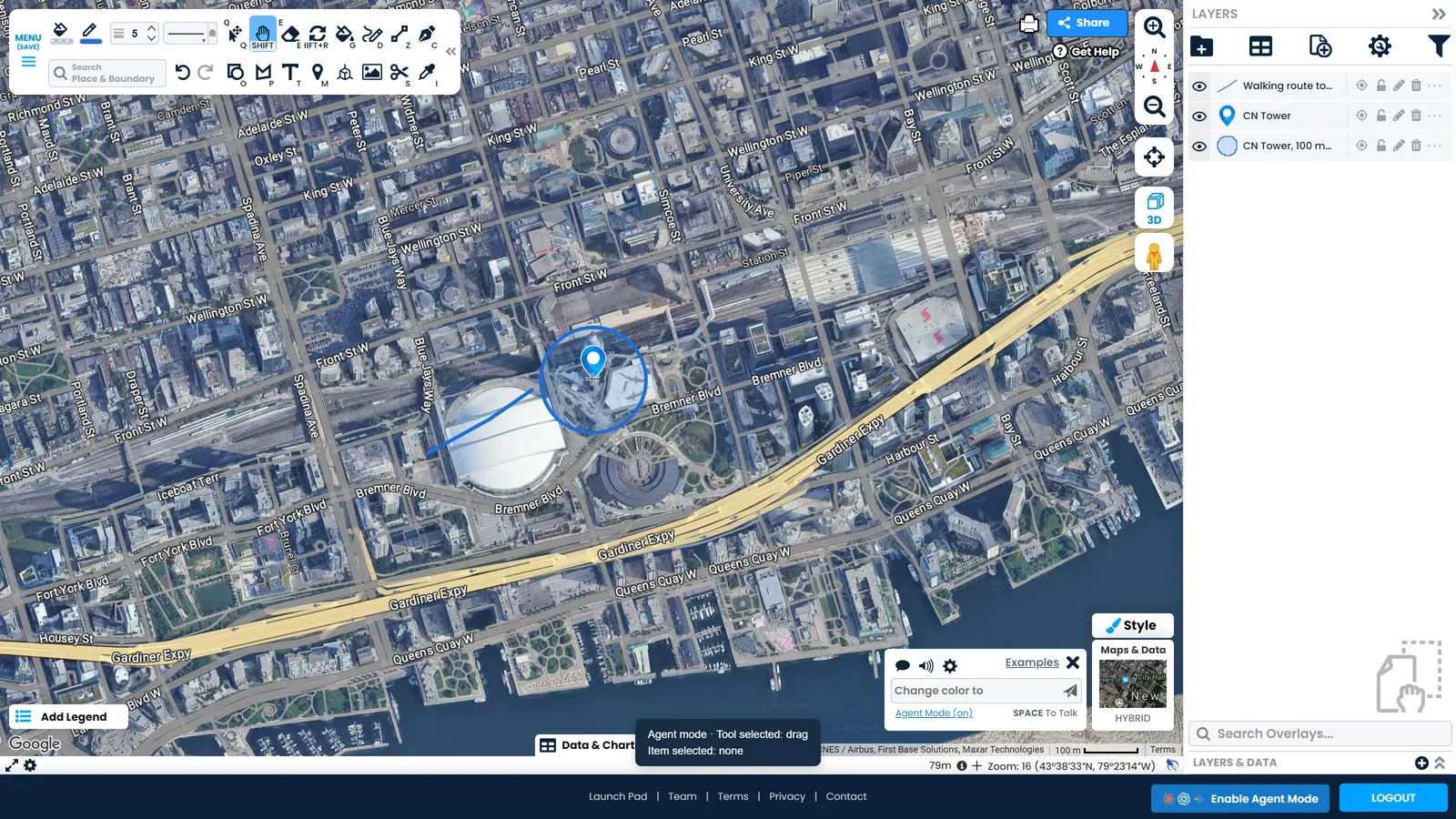
Markers, lines, shapes and circles with a real size in metres, placed where you said. Ask for a 100 metre circle around a building and that is what you get.
Fix what is already there
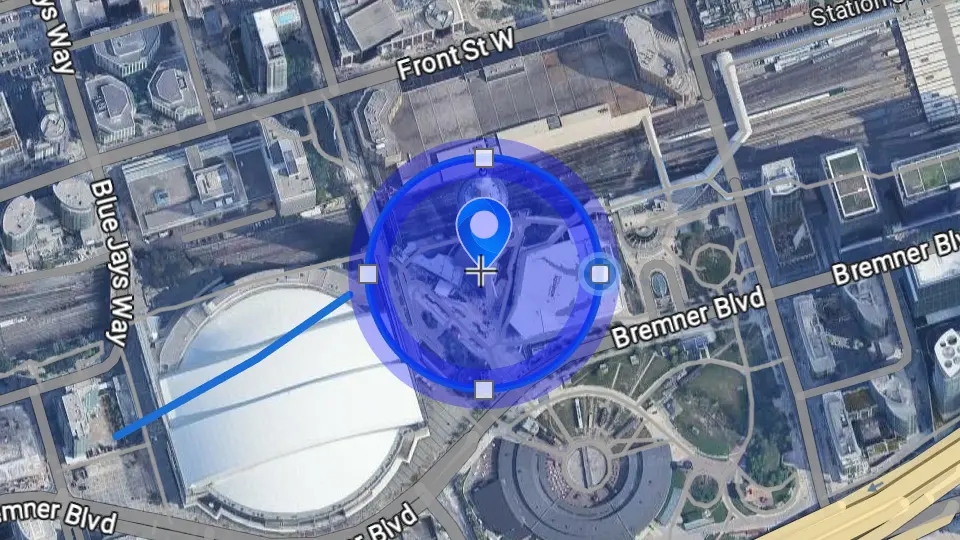
Point it at a shape on your map and ask for a change. It adjusts that shape and leaves the rest of your map alone.
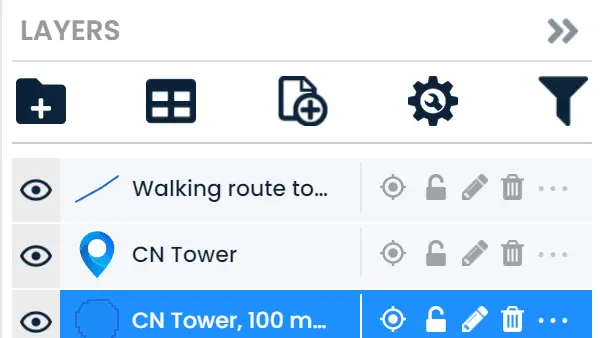
Check its own work
It can read your map back, name what it created and look at the result, so you are not left guessing whether the change landed.
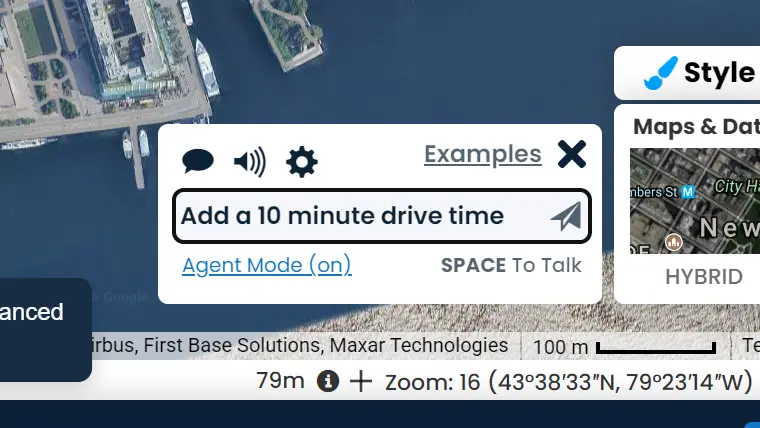
Ask Scribble for help
Scribble is the map assistant built into the editor. When your agent needs a hand finding a feature or planning a map, it can ask Scribble and carry on.
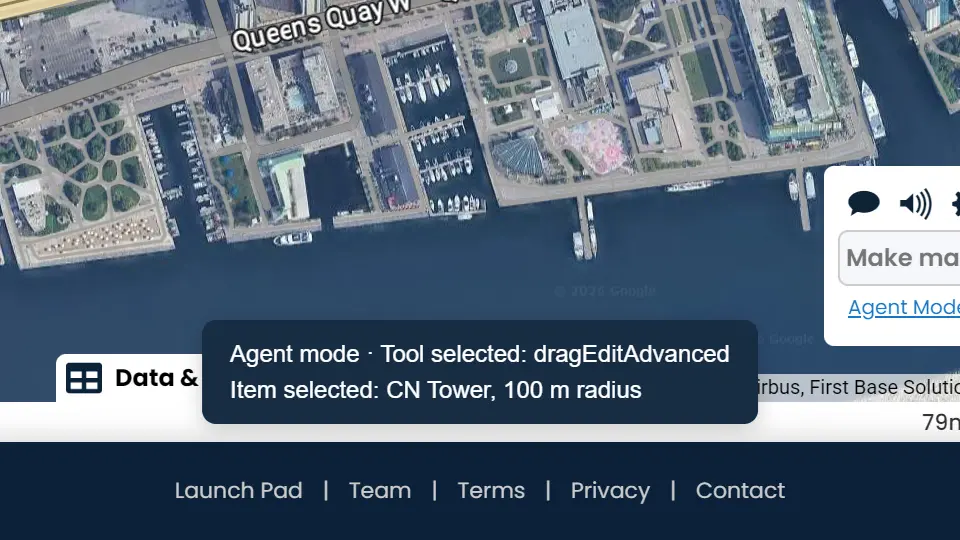
You can see it working
A status bar shows the tool in use and the item selected, so you can watch the work happen instead of wondering what changed.
How To Start
Open the editor
Open ScribbleMaps in the browser your agent works in, and sign in.
Let your agent in
Switch on browser access in your AI app, so your agent can see the page you have open.
Turn on Agent Mode
Click Enable Agent Mode in the footer, or just ask your agent to turn it on.
Ask for what you want
Tell your agent the job in your own words, and watch the layer list fill in as it works.
What Makes This Different
-
Nothing to set up
No download, no plugin and no keys to manage. Your agent works in the browser tab you are already signed in to.
-
Your maps stay yours
The work happens on your own account, on the map you have open. Nothing is saved or shared unless you save or share it.
-
Every change can be undone
Agent changes go into the same undo history as your own. One click puts the map back.
-
Your plan works the same way
Your sign-in and plan apply to the agent exactly as they apply to you. Agent Mode does not unlock anything extra.
-
You stay in charge
Stop a task while it runs, or switch Agent Mode off, and the editor goes straight back to normal.
AI agent mapping questions
Can an AI agent use ScribbleMaps?
Yes. ScribbleMaps has an Agent Mode that lets an AI agent work in the map editor with you. It can draw, edit what is already on the map, read the map back and undo its own work, using your own account and your own maps.
Which AI agents work with ScribbleMaps?
Claude, ChatGPT and Gemini all work, as does any other AI agent that can work in your browser tab. There is nothing to install, but you do have to switch on browser access in the AI app itself before it can see your map. In Claude that is the browser pane, behind the globe control.
How do I turn on Agent Mode in ScribbleMaps?
Open the ScribbleMaps editor and click Enable Agent Mode in the footer, or just ask your agent to turn it on. You can also open scribblemaps.com/create/#agentMode, which starts with Agent Mode already on.
Do I need to set anything up or install anything?
No download, no plugin and nothing to configure in ScribbleMaps. The one thing you do need is browser access switched on in your AI app, so your agent can see the page you have open. If your agent cannot name a layer on your map, that is what is still missing.
Can I undo what an AI agent draws on my map?
Yes. Every change an agent makes goes into the same undo history as your own changes, so one click of Undo puts the map back. Nothing is saved or shared unless you save or share it.
Can an AI agent edit a map I already made?
Yes. Point it at a shape and ask for the change you want. It adjusts that shape and leaves the rest of your map alone, and you can undo it if the result is wrong.
Can an AI agent see my map?
It can read the map you have open: what is on it, what the shapes are called and where the view is. It only sees the map while you have the editor open, and it works on your account, not a copy.
Does Agent Mode cost extra?
No. Agent Mode is included, and your plan works the same way it always has: whatever you can do yourself, your agent can do, and nothing more.
What kind of jobs is this good for?
Anything fiddly or repetitive: marking up a site, building a set of service areas, cleaning up imported data, restyling a layer, or checking that a map says what you meant. You describe the result and your agent does the clicking.
Is this the same as the Scribble AI assistant?
They work together. Scribble is the assistant built into ScribbleMaps and knows the product. Agent Mode lets the AI agent you already use drive the editor, and it can ask Scribble for help when it needs it.
Try It With Your Agent
Open the map editor, turn on Agent Mode and give your agent its first job.
Open the map editor