
 English
 Español
 Français
 Deutsch
 Português
 日本語
日本語
 中文
中文
 العربية
 한국어
한국어
 Italiano
 Русский
 Türkçe
 Nederlands
 Polski
 हिन्दी


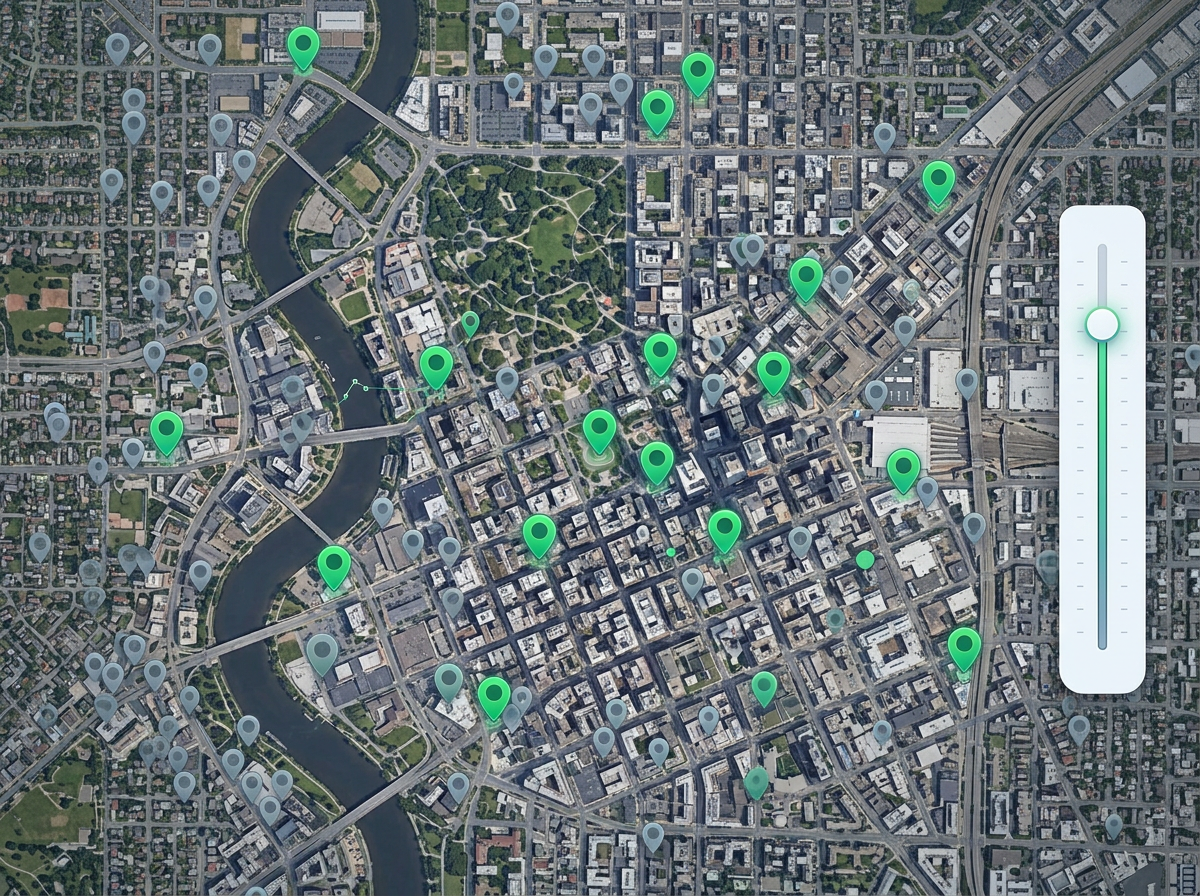
Show only top accounts
Hide low-value pins so reps focus on the accounts that matter this quarter. Flip the filter to see the long tail when you need it.
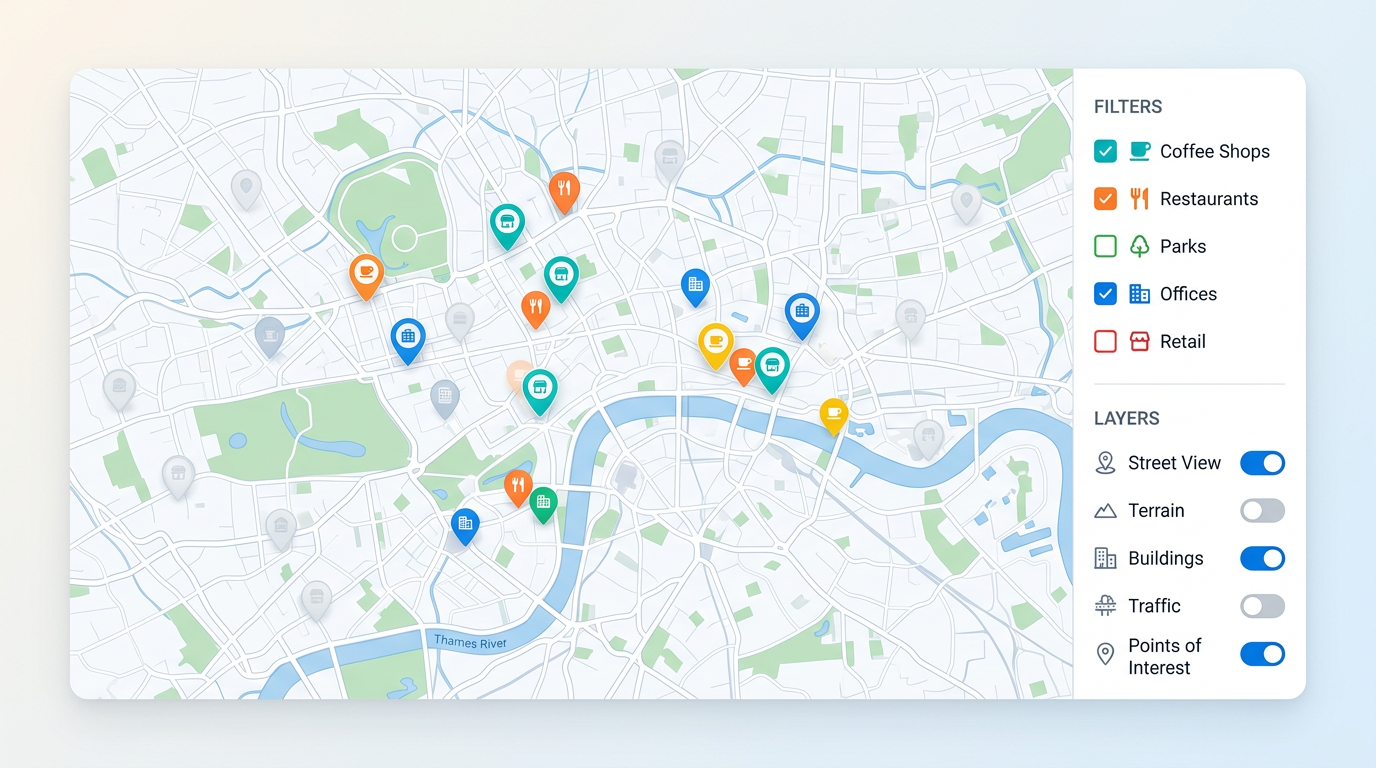
A busy map can hide the answer. Toggle layers on and off, hide pins by status, type, or value, and let viewers slice the map themselves with simple controls.
★ ★ ★ ★ ★“Ability to share a viewable custom map with a search feature and ability for viewers to hide and unhide various polygons is ultimately huge.”
Filter pins by status, type, owner, value, or date. Use checkboxes, ranges, or a search box. Set the filters once and viewers get the same controls.
Stack pins, regions, and shapes as separate layers. Viewers turn each one on and off without editing the map. Show what they need, hide the rest.
Add a search box so viewers can jump to a pin or place by name. Great for big maps where pan and zoom alone takes too long.
Hide low-value pins so reps focus on the accounts that matter this quarter. Flip the filter to see the long tail when you need it.
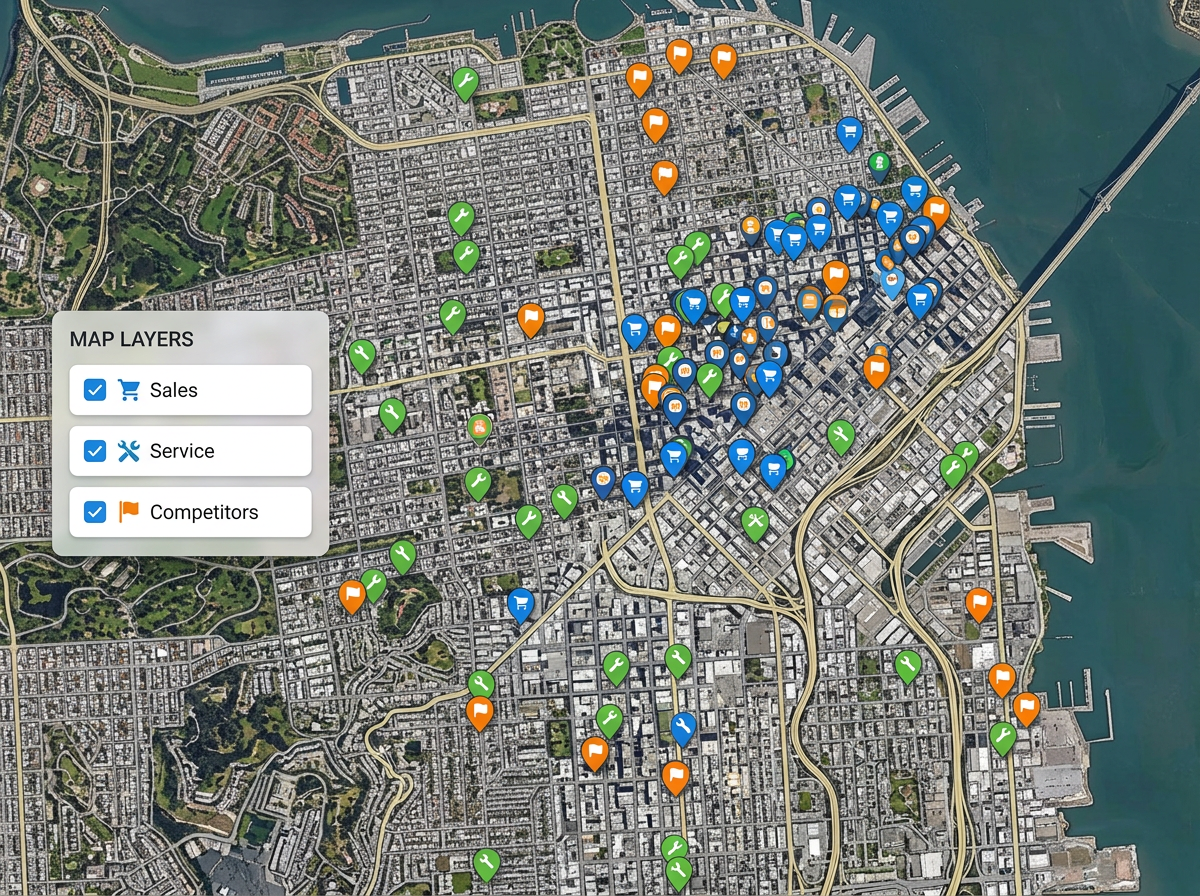
Build one map for everyone. Add layers for sales, service, and competitors. Each viewer turns on the layers they care about and ignores the rest.
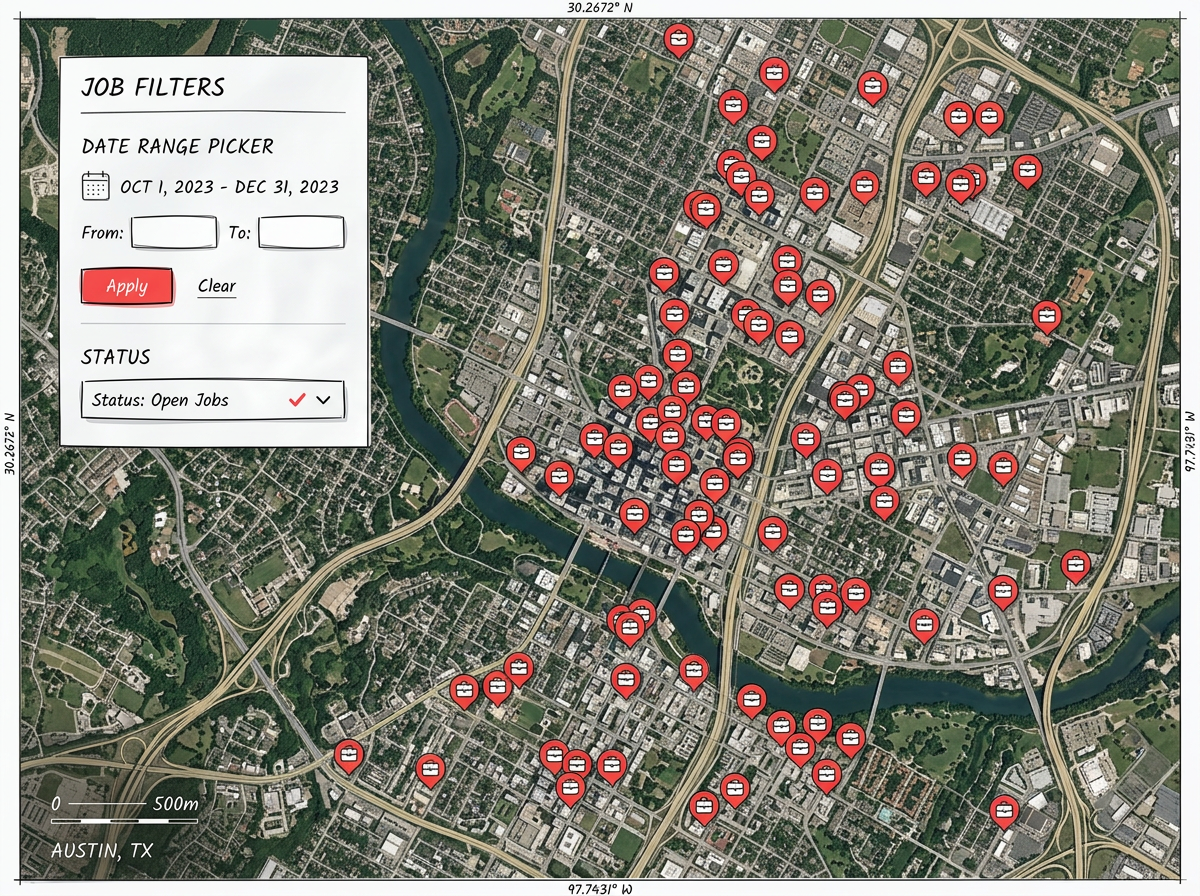
Show only open jobs. Show only sites visited last month. A clean filter beats scrolling through every pin and helps the team move faster.
Scribble AI
Tell Scribble AI what you need. Try “draw a 500m buffer around every site,” “import this CSV and color by status,” or “measure the route from the depot to each stop.” It does it in seconds. No GIS training needed, and your team gets the same map, ready to share.
Try Scribble AI →Map filtering means hiding parts of a map so the rest is easier to read. You can hide pins, layers, or shapes by any column from your data, like status, type, or value.
Yes. You can give viewers checkboxes, range sliders, and toggle controls. They change what shows on the map without being able to edit it.
Yes. Save the filters and layers a viewer sees first. They can change them on their end if they want a different view.
Yes. The filter and layer controls work in any modern browser, on phones, tablets, and laptops.